Last-mile delivery platform
Overview
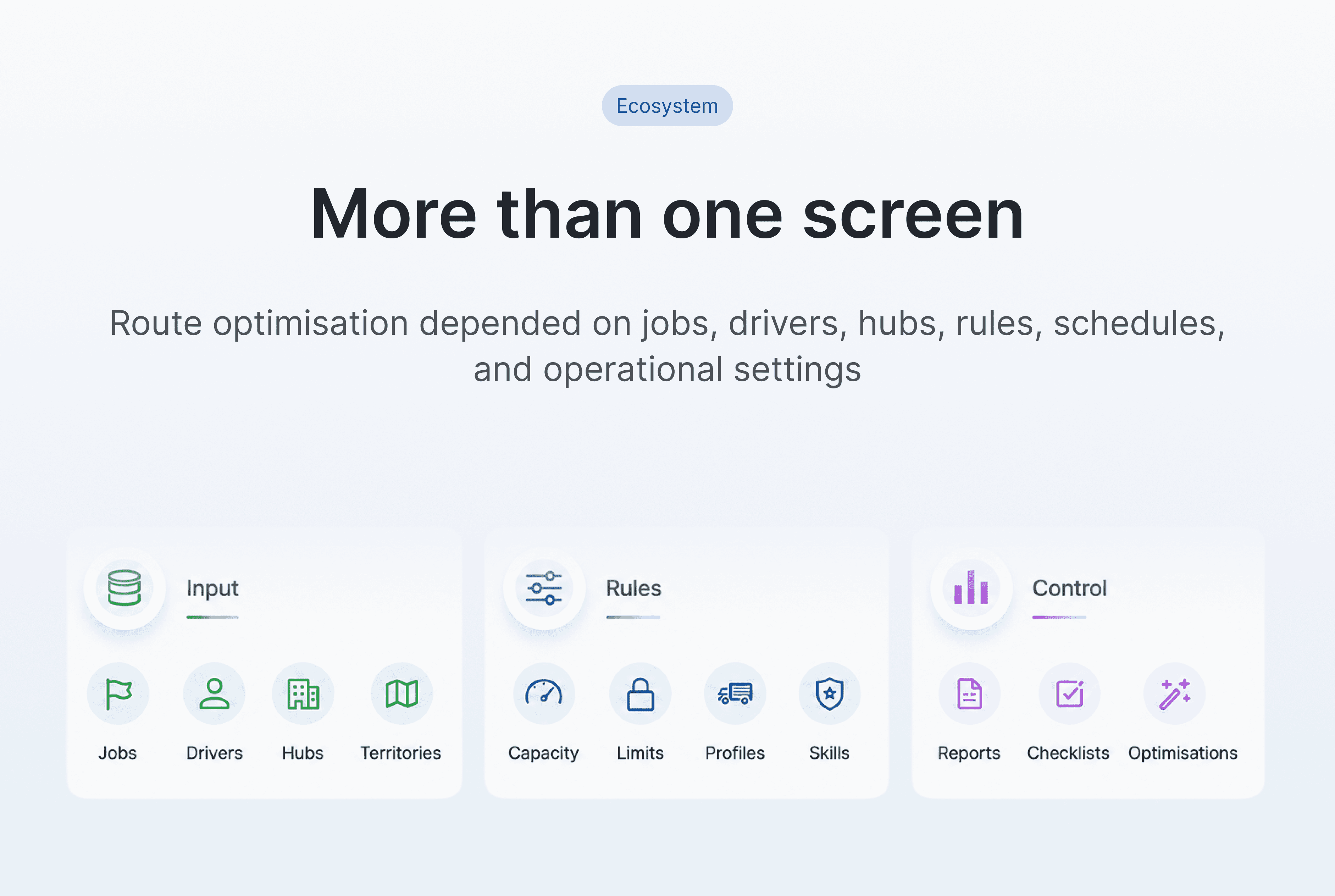
Route optimisation was not an isolated feature. It depended on a broader operational system including jobs, drivers, hubs, transport rules, schedules, capacities, reporting, and delivery settings. My role was to turn that complexity into a workspace where dispatchers could review optimisation results and adjust routes with confidence

Light and dark theme support
The interface supports both light and dark themes through a flexible token-based design system. Core colors are mapped as reusable design tokens, making the product easier to scale, maintain, and adapt across different interface states


Expandable workspace for deeper route control
The panel was designed to adapt to the dispatcher’s current task. In the collapsed state, the map remains dominant for spatial review. When route management becomes the priority, the panel expands to give more room for drivers, capacities, and timeline editing without taking the user out of context
Timeline zoom for dense route planning
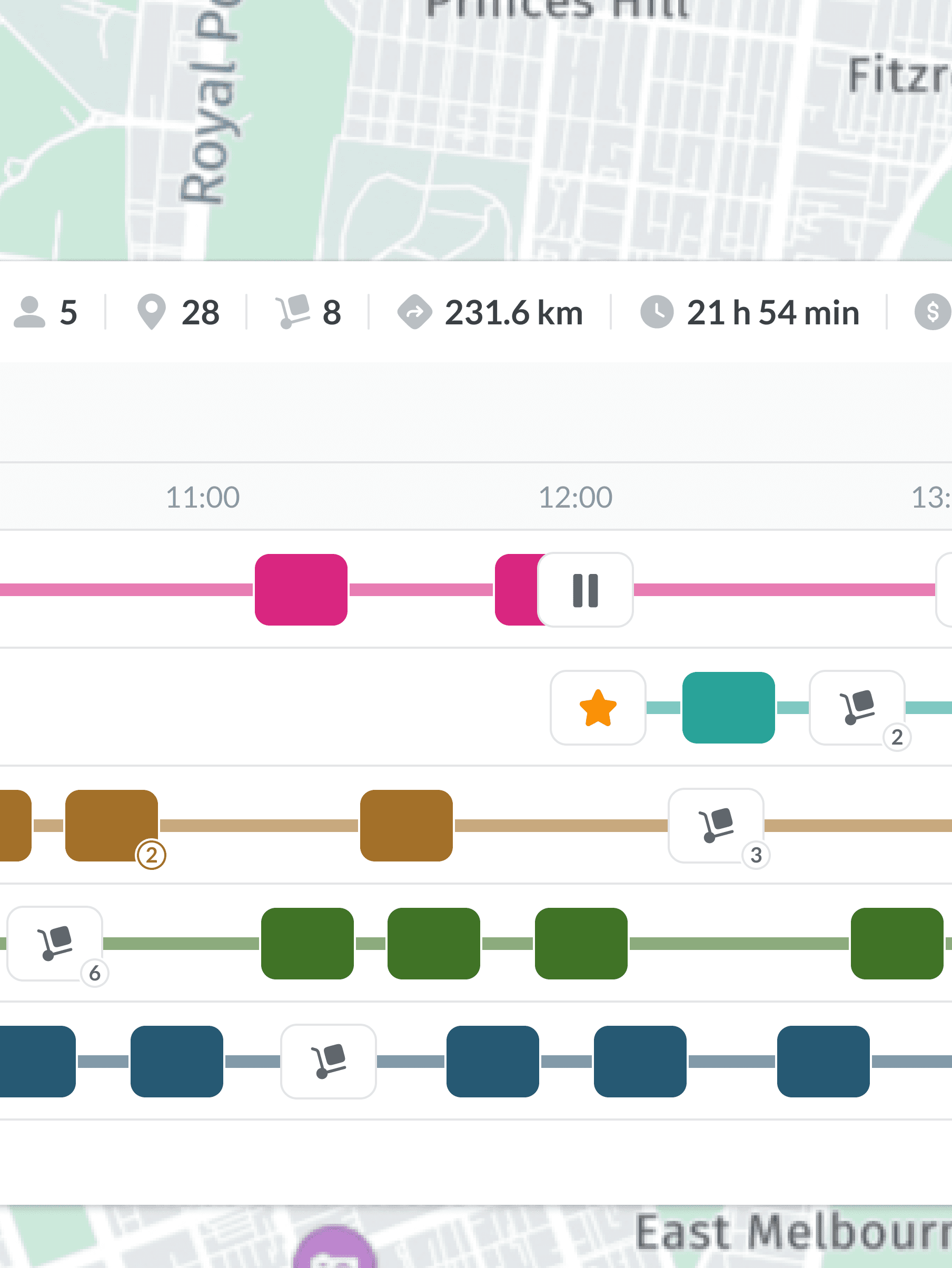
I added timeline zoom controls so dispatchers can switch between overview and detailed planning without leaving the workspace. Zoom in helps inspect dense route sections, zoom out restores the bigger picture, and reset view brings the timeline back to a predictable default state. This makes the panel easier to use when many jobs are placed close together
Reoptimising routes without leaving the workspace
I designed this section around two planning modes: changing how the system optimises routes and switching how dispatchers read the result. Optimisation Focus gives managers control over route priorities, such as cost, duration, distance, route count, territory jobs, and priority jobs. Jobs and Metrics views then let users move between hands-on route editing and performance review without changing context

Interactive controls for route planning
The timeline and Manage menu work together as one control layer. Dispatchers can inspect route objects directly on the timeline, then use nearby management actions to add jobs, enter edit mode, review optimisation history, export data, or adjust the route without leaving the workspace
Edit mode for controlled route changes
I separated route editing from the default review state, so dispatchers do not accidentally change an optimised plan. Once Edit mode is enabled from the Manage menu, a single job can be dragged to a new position or another route, with clear preview feedback before the change is applied. This keeps manual adjustments intentional, visible, and easy to control
Bulk job movement in Edit mode
Edit mode also supports moving multiple jobs at once. Dispatchers can select several route objects, drag them as a group, and place them into another route or position with preview feedback. This helps handle larger operational changes faster while keeping the action controlled and reversible before confirmation
Safe drop zones for route endings
I designed end-of-route drop behavior for cases where dispatchers drag one or multiple jobs past the last scheduled stop. Instead of guessing where the work will land, the interface exposes a clear “Last stop” target and keeps an extra safe zone after the final job. This makes long-route editing more predictable and prevents accidental placement errors during bulk movement
Final reflection
This project became more than a route optimisation screen. It was a planning workspace where automated results, manual control, driver capacity, route structure, and operational decision-making had to work together. My focus was to make dense logistics data easier to read, safer to edit, and more useful for dispatchers who need to move from an optimised plan to published routes with confidence